A layout that fits.
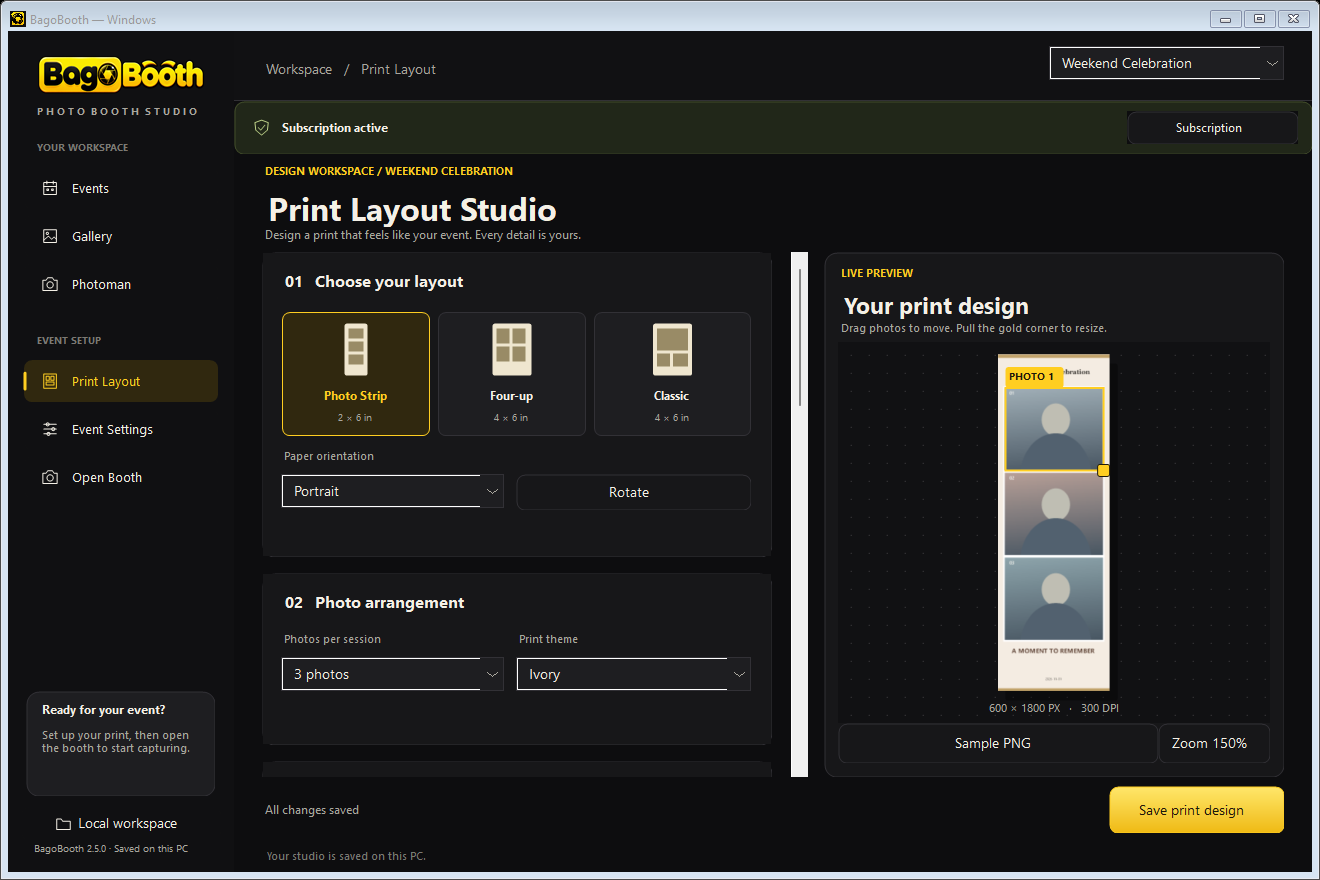
Make photo strips or 4×6 prints. Switch between portrait and landscape, move each frame, and add your own artwork.
 Download
Big smiles. Beautiful prints. Now a native Windows studio, with its own desktop window and your memories saved as files on your PC.
Using a Chromebook? Setup guide ↗
Upgrading? Move your photos and activation →
Full access. No payment required. No automatic charge.
One little app.
A whole lot of memories.
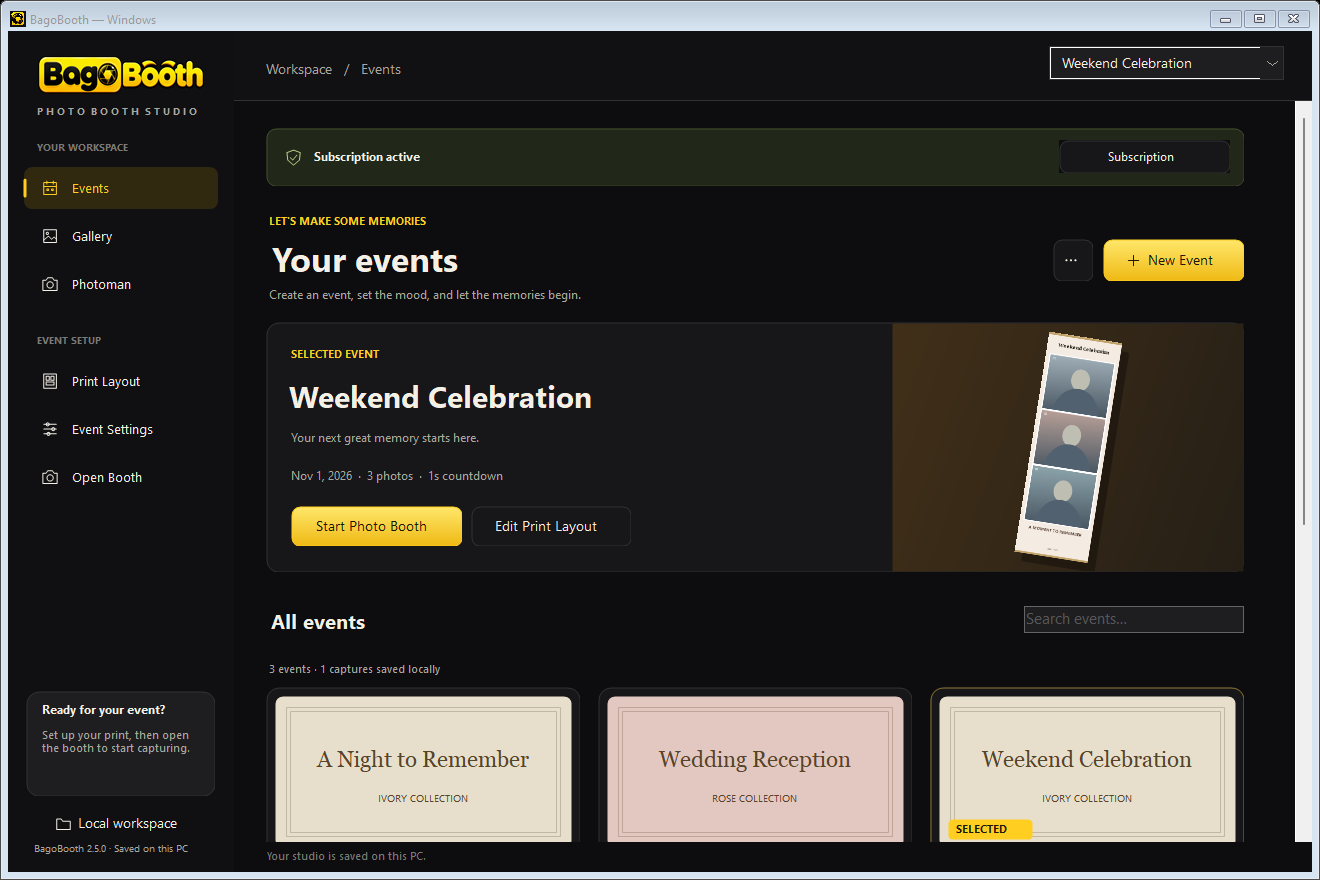
From the first pose to the final print, keep your event, layouts, and captured memories in one workspace.
 Native Windows 2.5 interface · Example event
Make photo strips or 4×6 prints. Switch between portrait and landscape, move each frame, and add your own artwork.
Choose photo, GIF, boomerang, a seven-second silent AVI video, or a 48-frame Flipbook with printable cards. Add Chroma key backgrounds or receive roaming photos through Photoman.
Events and captures stay in your Windows studio folder. Back up your files, and keep saved photos accessible after your plan ends. Clearing browser data does not affect this desktop studio.
Three new tools in the native Windows app. See how to use them →
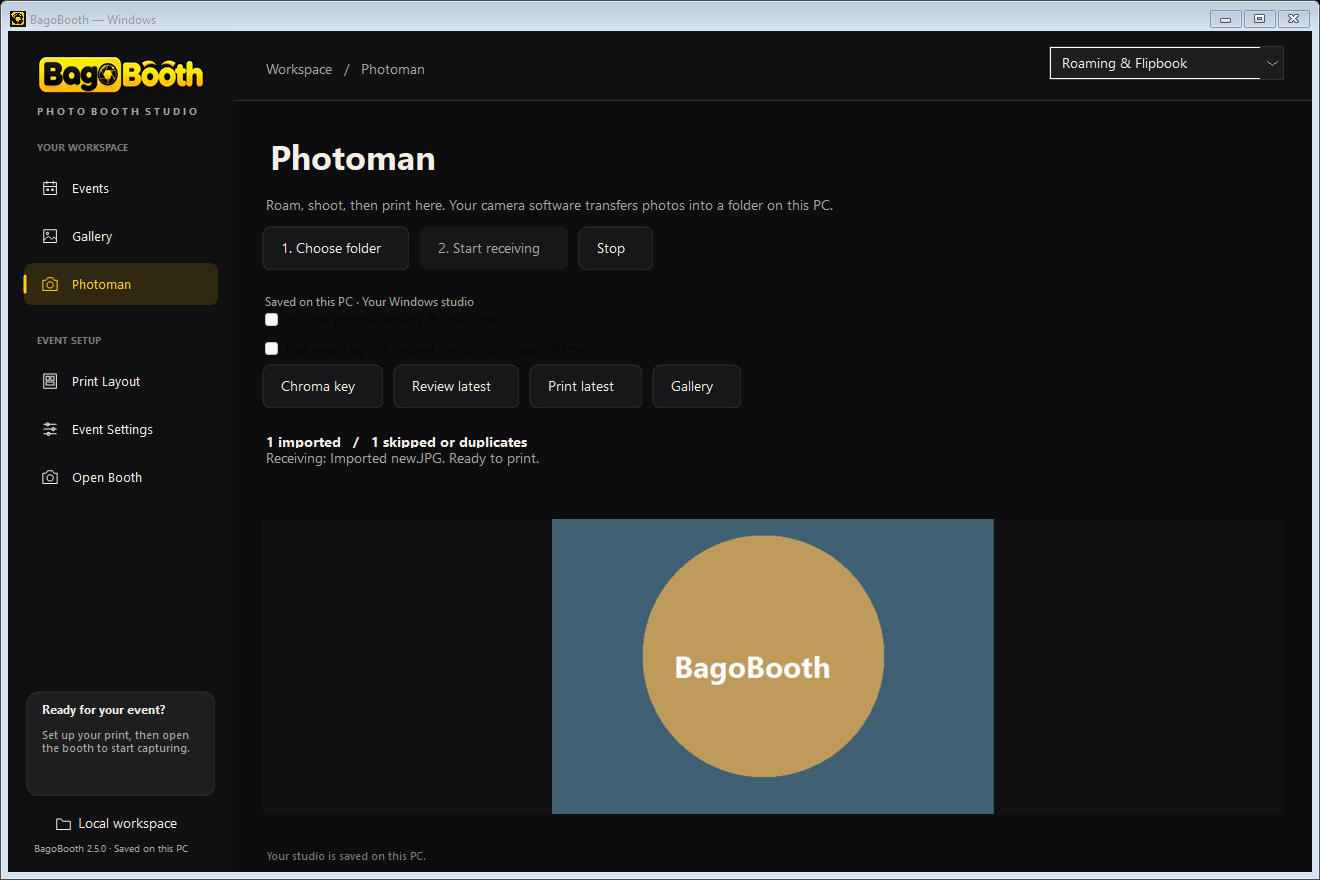 Photoman · Camera / Wi-Fi transfer folder
Your roaming photographer shoots; camera transfer software saves JPEG/PNG photos into a folder on this PC. Start receiving to import new photos automatically, then review and print. Originals stay in the transfer folder.
Replace a green or blue screen with your chosen image or solid color. Preview the result and save settings for each event.
Capture 48 frames, preview the animation and export 12 numbered 6×4 print sheets. Cut the cards, stack them in order and bind the left edge.
Open BagoBooth-Setup.msi and follow the installation wizard. Then open BagoBooth from the Windows Start menu.
Choose “Start free trial” on the welcome screen, or “I have a key” to activate. Create an event, then use “Devices & camera” to scan and test your camera.
Choose your layout and open the booth. When you are ready for a paid plan, request a key through the Telegram button in the app.
Choose when to continue. Paid keys are issued after the owner confirms payment, with no automatic billing.
Try the complete experience before your next event.
A simple plan for the occasions coming up.
Keep your booth ready for a whole year of occasions.
Paid access starts when the activation key is issued. Download the app first and submit your installation ID through its Telegram button. Internet is required for trial, activation, and new captures.
Yes. BagoBooth 2.5 has a C# Windows desktop interface, camera preview, print editor and gallery. It runs independently of Edge/Chrome and stores its pictures as files in your Windows account. The Chromebook/web edition remains separate.
A Windows 10 or Windows 11 PC with .NET Framework 4.8, a compatible camera, and internet for subscription verification and new captures. Download the Windows MSI installer, follow its wizard, then open BagoBooth from Start. Read the Windows setup guide →
Close the old BagoBooth completely from its tray icon. Open the browser migration tool using your original browser profile, then choose Export to Windows app. In the new native app, use Local workspace → Import browser data. Import activation too to retain the original installation ID and key. Original browser photos are kept. Follow the migration steps →
Open Subscription in the app, choose a plan, and use its Telegram button. Submit the installation ID and request to @BagoBoothBot. After the owner confirms payment and approves, the bot sends your code. Paste the complete SB2 key into BagoBooth.
Internet is required to start a trial, activate a key, check your subscription, and make new captures. Existing pictures remain available for viewing, copying and printing while offline or after expiry.
Native Windows captures are files in %LOCALAPPDATA%\BagoBooth\Photos. Events and artwork live in the same studio folder. Use Local workspace → Open studio folder to find them, or Create backup to save a portable studio backup. Clearing browser data does not remove native studio files.
Use Devices & camera to select and test your webcam, a camera supported by the separately installed digiCamControl driver, or a photo folder. DSLR support depends on the exact model; Canon EOS M10 USB capture is not guaranteed. Native Windows printing opens paper setup and printer selection directly. Read the camera setup guide →
The review screen has Share with QR for photos and GIFs. It needs the separately configured cloud bridge and internet; this service is not automatically included with the EXE. The guest scans the QR, opens the link, and saves the picture. Links expire in 24 hours. Native AVI video is not supported by the current cloud bridge.
This native release records seven-second silent MJPEG AVI video at 640×480. It does not record microphone audio. GIF and boomerang are animated GIFs; photo prints are 300-DPI PNGs.
Use the separate BagoBooth Web app. It supports compatible browser cameras, layouts, downloads and browser printing, with its own browser storage and installation ID. Read the Chromebook guide →
This release is not digitally signed. Windows may display an unknown-publisher notice. The download checksum is available below; contact the owner if you are unsure about a download.
Close the native app window to exit. To update an installed copy, close the app and run the latest MSI installer. For a portable copy, replace its EXE. Your studio files stay in the Windows data folder. If upgrading from the older browser launcher, migrate first using the Windows migration guide.
Windows 10 / 11 · Free 7-day trial