Your Windows studio.
Your files, close by.
BagoBooth now has its own C# Windows desktop interface. It runs without a browser or local website and keeps your events, print designs and captures as files in your Windows account.
Download Windows installer ↓Set up a new studio
- Use Windows 10 or 11 with .NET Framework 4.8. Download BagoBooth-Setup.msi and double-click it. Follow Welcome → Next → installation folder → Install → Finish. Open BagoBooth from the Windows Start menu.
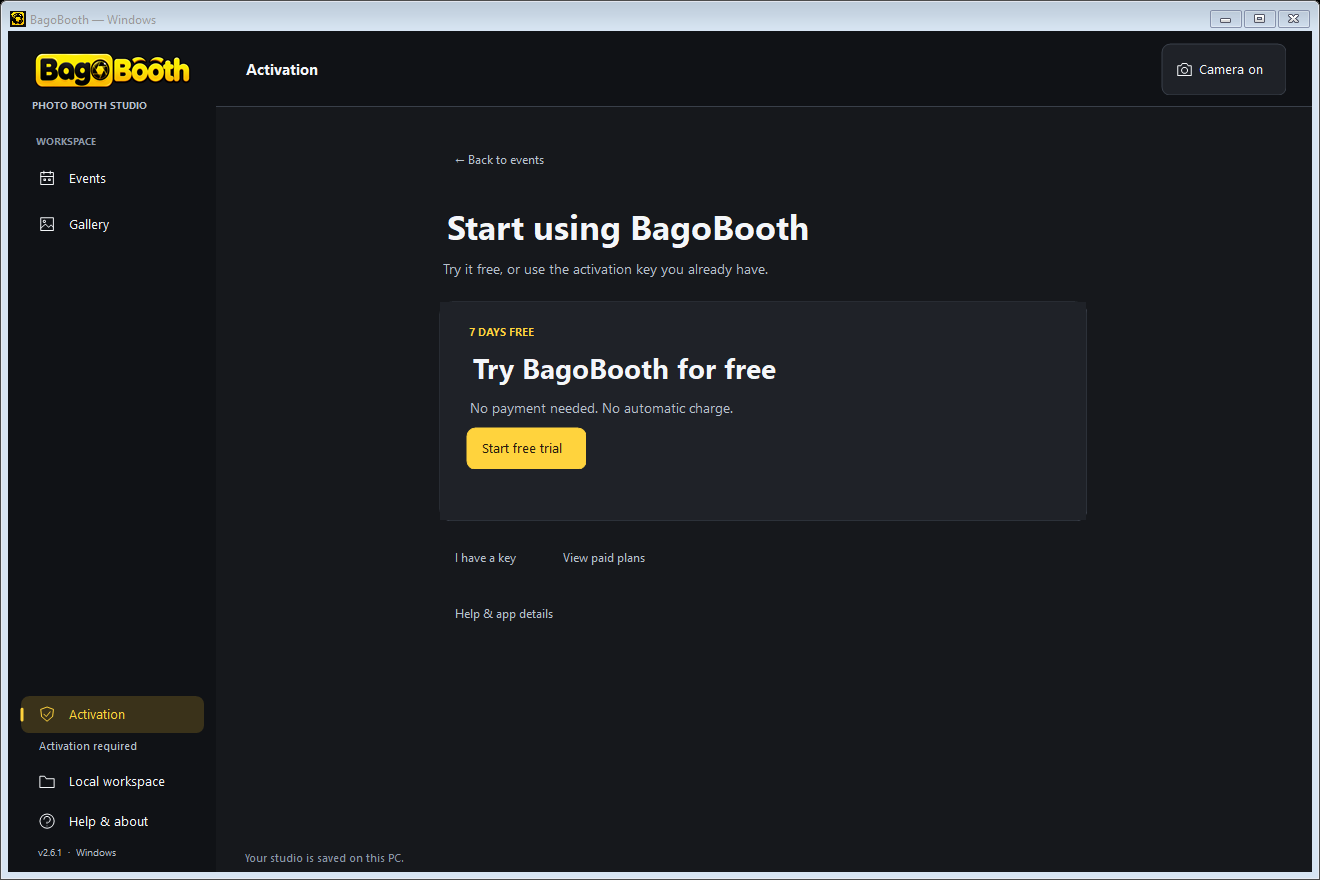
- On the welcome screen, choose Start free trial, or I have a key → Activate if you already received a key. Internet is required for activation.
- Choose Create your first event, or New Event from Events. Set the name, date, caption, shot count and countdown.
- Optional: open Print Layout. Choose a strip or 4×6 print, portrait or landscape. Drag photo frames, resize a gold corner, or upload PNG/JPG artwork. Choose Save print design.
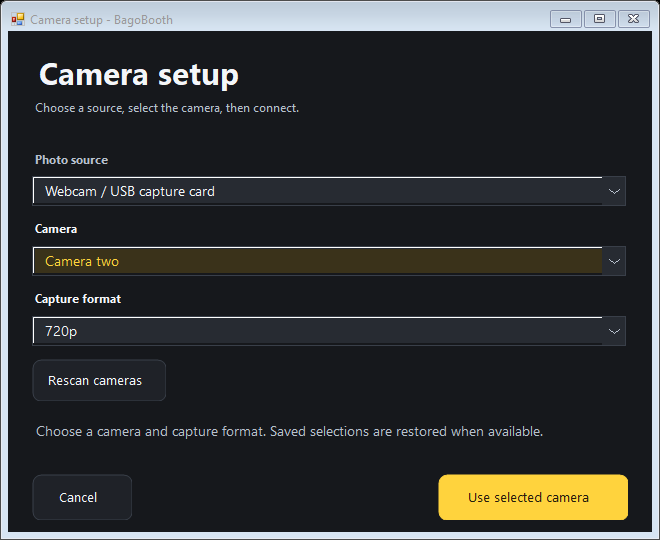
- Under Open booth → Camera settings → Devices & camera, select a camera and format after the automatic scan. Choose Use selected camera, then verify the preview or test image. Camera setup guide →
- Choose Start capture. Your picture is saved automatically in the native studio; the review screen offers a copy, printing, Cloud QR and another session.
Windows 2.6.1: smoother operator flow
The camera stays connected between guests. Use Disconnect camera when done; the header indicates when the camera is active. Start capture is available only when the source and activation are ready. Cancel capture or Cancel connection can stop waiting for a network check.
When you leave Event Settings or Print Layout with unsaved edits, choose Save, Discard or Cancel. A failed save keeps your draft open. Ctrl+S saves the current editor. Event Settings keeps its Save event action fixed below the fields.
Camera setup scans automatically and restores saved device/format choices. If no camera is found, the dialog explains how to recover; Use selected camera stays disabled until the selection is valid. Cancel keeps the original preferences.
Gallery Back restores the previous page and filter. Review shows the capture’s event, and New session uses that event. Missing files disable unavailable print/save actions and explain recovery. Photos and thumbnails process in the background.
A simpler Windows workspace
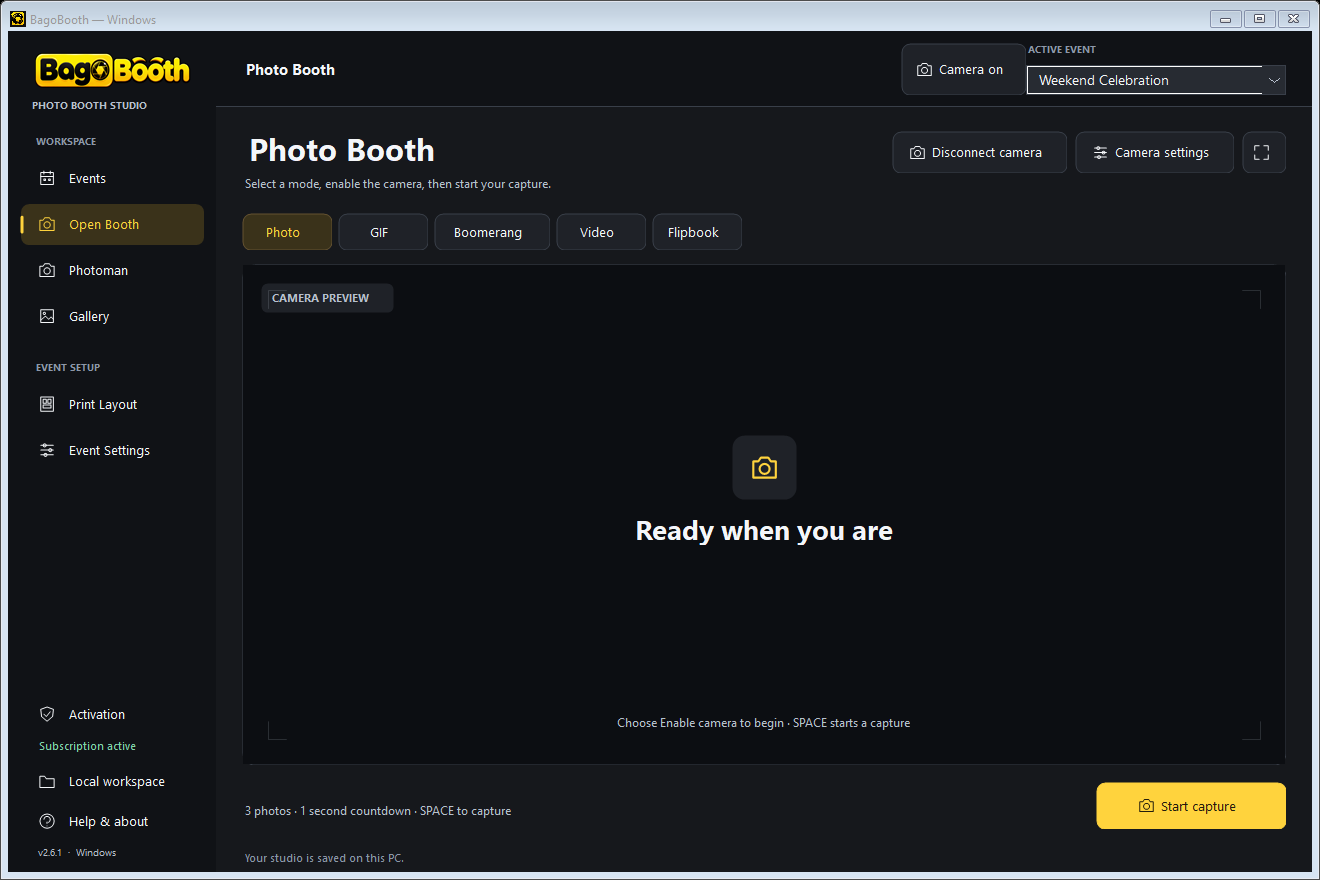
Use the sidebar for Events, Open Booth, Photoman and Gallery. Print Layout and Event Settings belong to the selected event. Activation and Local workspace stay available at the bottom.
In the booth, choose a capture mode and use Enable camera, then Start capture. Open Camera settings for devices, Chroma key and mirror preview. The preview fills the workspace when settings are closed.
In Event Settings, edit fields directly and choose Save event. In Print Layout, choose a layout and drag frames in the larger preview. Click a section heading to expand caption, border, frame or artwork controls; Save print design stays at the bottom.
A normal Windows installation
The MSI installs BagoBooth for your Windows account, normally in %LOCALAPPDATA%\Programs\BagoBooth, and adds a Start Menu shortcut plus an entry in Windows Settings → Apps. Uninstall removes the program and shortcut; your studio folder, photos, layouts and activation files are kept.
Close any running copy before installing or opening the installed app. The supported .NET Framework version is checked by setup. No Node.js, browser launcher or ZIP extraction is required.
Prefer the portable EXE? It runs without installation. The installer and portable build are currently unsigned, so Windows or the browser may still warn. Read the signature status.
Photoman: roaming camera to print station
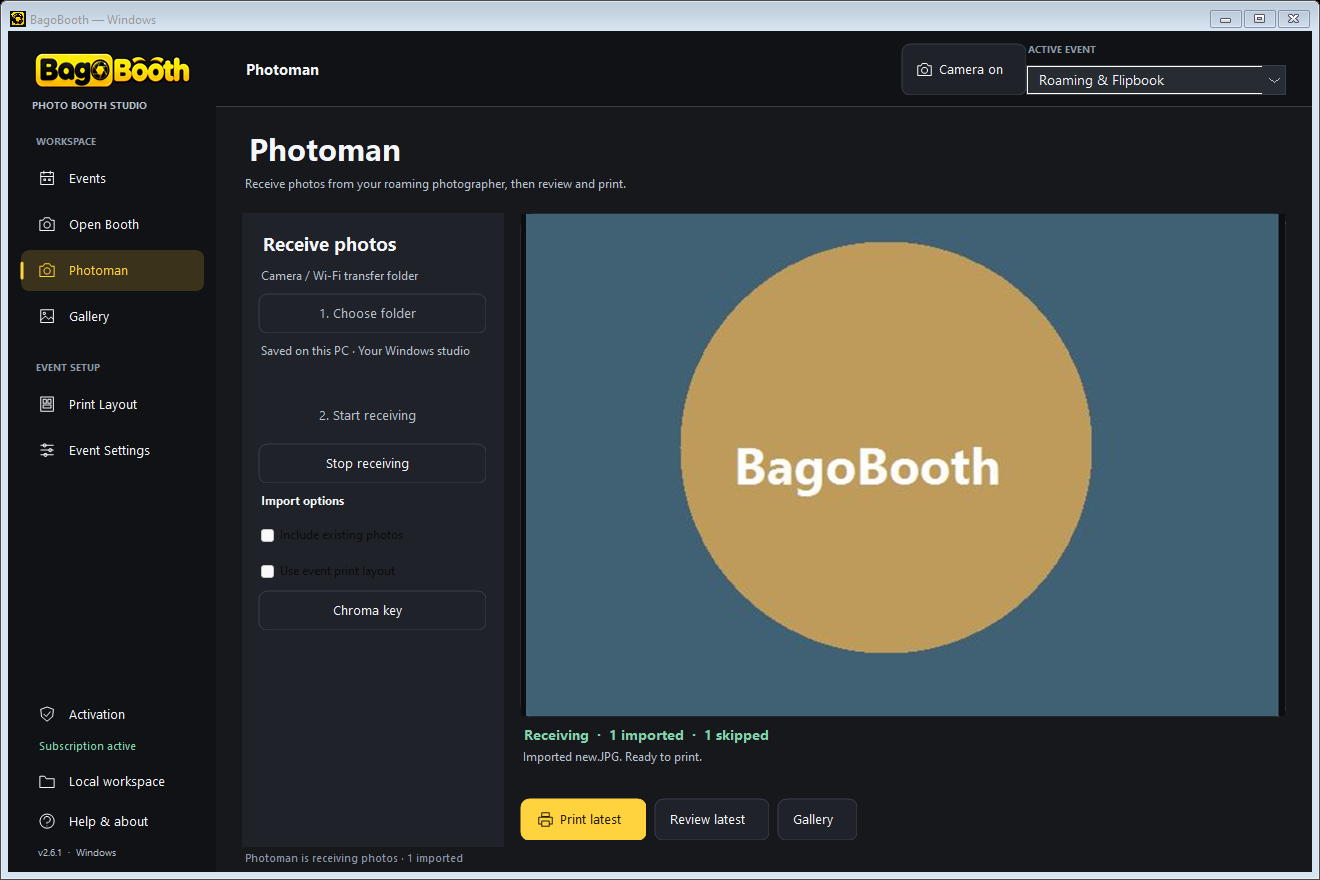
- Configure your camera’s Wi-Fi/tethering transfer software to save JPEG or PNG photos into a folder on this Windows PC. BagoBooth reads that folder; it does not connect directly to the camera’s Wi-Fi protocol.
- Select the event and open Photoman in the sidebar. Choose 1. Choose folder, then 2. Start receiving.
- New photos appear automatically after transfer finishes. Use Review latest, Print latest, or Gallery. Photos print only after you choose to print.
- Optional: enable Include existing photos before starting, or Use event print layout to repeat one photo in every frame. The default creates a 300-DPI 4×6 print, cropped to fill the paper.
- Choose Stop when done. Changing events or closing the app stops receiving. New imports need an active subscription and internet; saved photos remain accessible offline.
JPEG/PNG files up to 10 MB are supported; RAW-only files are skipped. Duplicate photo bytes are skipped within the same event, including after restarting. Originals remain in the transfer folder. Start receiving again after reopening BagoBooth.
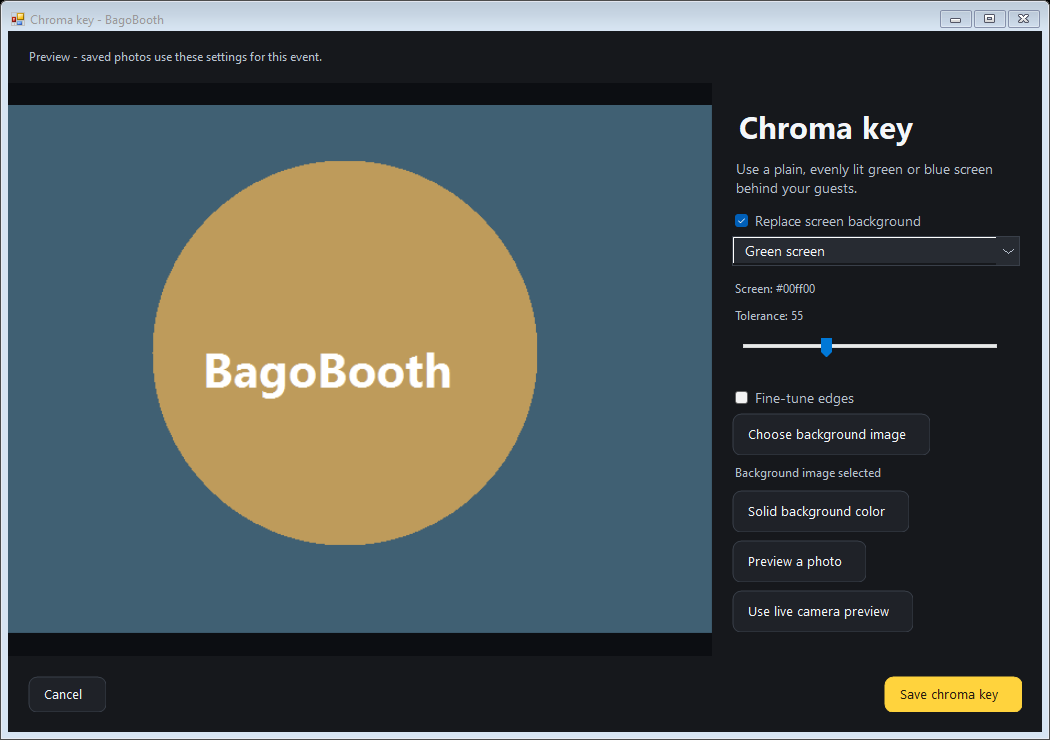
Chroma key: choose your background
- Use an evenly lit green or blue screen behind the guest.
- Open Open Booth → Camera settings → Chroma key, or use the Chroma key button in Photoman.
- Enable Replace screen background, choose the screen color, and select a background image or solid color.
- Use the live camera or Preview a photo. Adjust Tolerance; expand Fine-tune edges for softness and spill removal.
- Choose Save chroma key. Settings apply to this event’s new photos, Photoman imports, animations, video and Flipbooks.
Backgrounds are copied into the studio and included in event exports and backups. Previously saved pictures keep their original appearance.
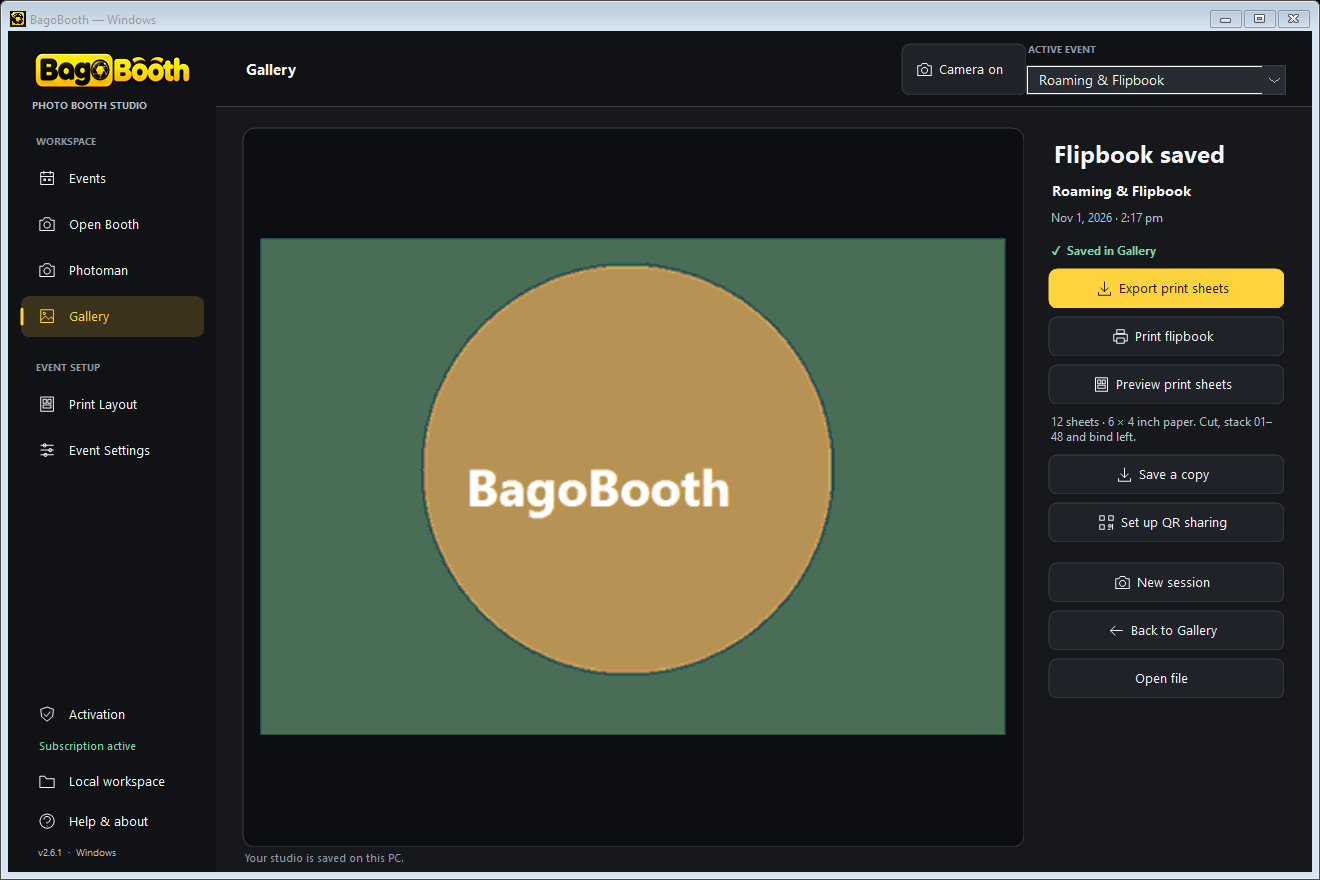
Flipbook: capture, print, cut and bind
- Enable a compatible webcam or USB capture card. In Open Booth, select Flipbook and start capture.
- After the countdown, move slowly while BagoBooth captures 48 frames at a target 8 frames per second. Capture takes about six seconds; slower hardware may take longer.
- Review the animated GIF. Choose Export print sheets to save a ZIP with 12 PNG sheets, all original JPEG frames and PRINT-ME.txt instructions.
- Use Preview print sheets or Print flipbook. Select 6×4 inch landscape paper and check printer margins. For 3×2 inch cards, print exported sheets at actual size, preferably borderless.
- Cut along the dashed lines, stack cards 01–48 in order, and bind the left edge. The animation is a separate softcopy; Cloud QR shares the GIF through your configured bridge.
The camera transfer-folder and tethered still-photo modes cannot record Flipbook sequences. Studio backups preserve the animation and printable frame bundle.
Activation, one step at a time
The welcome screen shows one main action. Key entry and paid plans open only when you choose them. For a paid plan, choose View paid plans → Continue on Telegram. After approval, return to the app and choose I received my key. App details and support tools stay under Help & app details.
Moving from the old Windows launcher?
Move your original pictures, artwork and activation before requesting a replacement key. The migration tool opens the old browser edition so it can read that original browser profile.
- Close the old BagoBooth completely: right-click its tray icon and choose Exit BagoBooth. Its local server must be closed before using the migration tool.
- Download BagoBooth-Browser-Migration.exe and open it. Keep using the same Edge/Chrome browser and profile that stored your old studio.
- Choose Export to Windows app at the bottom right. Export all events or one event at a time. Keep the downloaded .bagobooth.json file private because it contains activation details.
- Open the new BagoBooth.exe. Go to Local workspace → Import browser data and choose that export.
- Choose Yes to import the original installation ID and key if this native studio has no different activation you need to keep. Open Activation → Help & app details → Refresh status.
- Check the imported gallery, artwork and subscription before deleting any original browser data. Exporting keeps the original pictures; importing the same file again does not duplicate captures.
Exports support up to 160 MB of original files at a time. Export large galleries by event. If a single event exceeds that limit, save its media separately from the old gallery. WebP artwork is converted to PNG by the exporter.
Find and back up your files
In the native app, choose Local workspace → Open studio folder. The default folder is %LOCALAPPDATA%\BagoBooth; captures are in its Photos subfolder. Clearing browser data does not affect these native files.
Create backup saves events, pictures, artwork, Chroma backgrounds and Flipbook frames to a portable .bagobooth.zip. Restore backup merges missing events and captures, keeping existing event edits. Activation stays encrypted for your Windows account and is not included in portable backups.
Printing and softcopies
Print photo and Print preview use Windows dialogs. Select the printer's supported paper size and orientation in page setup. Paper, borderless output and cutting depend on the printer driver.
Choose Local workspace → Set up QR sharing, enter the connection token supplied for your sharing service, and choose Connect. This tests the local sharing service without uploading photos. The token is encrypted for your Windows account. Review shows Set up QR sharing until connected, then Share with QR. Native AVI/MP4 video does not offer a QR action.
Share with QR needs the separately configured cloud bridge and internet. It is available for photos and GIFs; it is not automatically included with this EXE. A guest scans the QR, opens the photo and saves it. Links expire in 24 hours.
Capture formats
Photo prints are 300-DPI PNGs. GIF and boomerang use native animated GIFs. This release records seven-second silent MJPEG AVI videos at 640×480; microphone audio is not included. Imported browser videos can open in your Windows player. The current Cloud QR bridge does not share native AVI or MP4 files.
Close and update
Close the native window to exit. To update, close the app and run the latest MSI installer. If using a portable copy, replace its EXE. Your studio data stays in its Windows folder. Keep a backup and test your actual camera and printer before an event.
For Chromebook, continue using the separate web app and Chromebook guide.
Need help?
Open @BagoBoothBot for help, or contact @kennethantonil. Send your Windows version, camera/printer model and error message; keep activation keys private.